
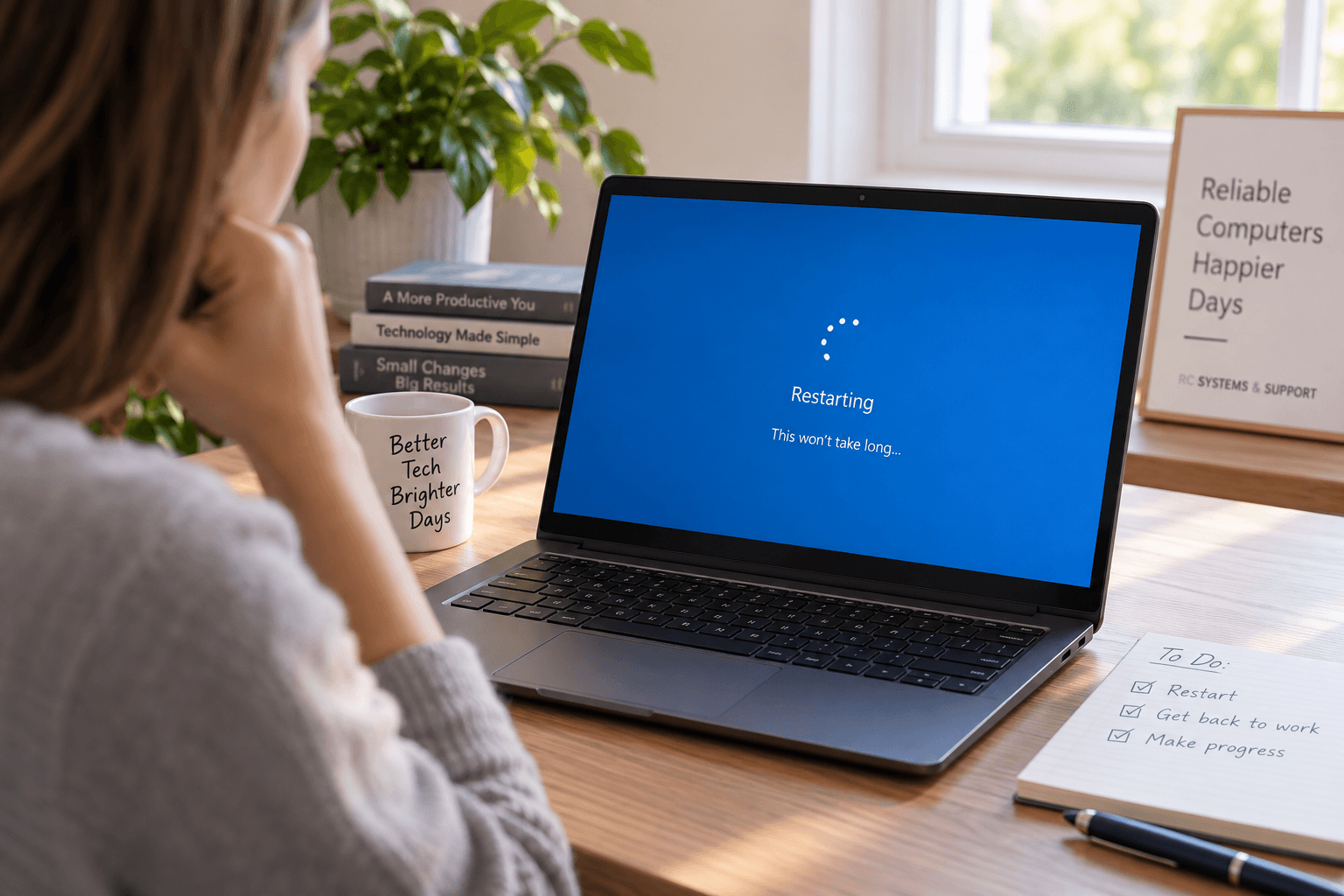
Yet there is a practical reason the advice has survived for so long. A computer changes continuously while it is running. Applications consume and release memory, background services maintain connections, drivers communicate with hardware, updates modify system components, and dozens of processes operate without ever appearing on the screen. When one part of that environment gets into a bad state, restarting gives the operating system an opportunity to rebuild much of it cleanly.
That does not mean restarting repairs everything. In fact, the way a problem behaves after a restart can tell you something useful about what may be happening underneath.
Even when you are staring at an empty desktop, Windows is busy. Security software is running, network services are maintaining connections, applications may be checking for updates, cloud services may be synchronizing files, and hardware drivers are communicating with everything from the display to the Wi-Fi adapter.
Most of this activity happens reliably enough that we rarely notice it. Occasionally, however, a process stops responding properly, an application fails to release resources, or a service ends up in a state it was not supposed to remain in. Closing the program you were using may not resolve the issue because the component causing it can continue running in the background.
Restarting changes that environment much more thoroughly. Windows closes the active session, stops processes and services, releases resources they were holding, and loads the components it needs again during startup. Instead of trying to identify and reset one misbehaving process at a time, the system gets a cleaner starting point.
RAM is the temporary working space your computer uses while applications are running. A browser tab, spreadsheet, video call, background utility, and Windows itself all need some portion of that memory to do their work.
Software is supposed to release memory when it no longer needs it, but that does not always happen perfectly. A program with a memory leak, for example, can continue consuming RAM unnecessarily. Leave that application running long enough and the computer may gradually become slower even though nothing obvious has changed.
When available memory becomes tight, Windows has to work harder to keep everything moving. Applications may respond more slowly, switching between programs can become frustrating, and the system may increasingly rely on storage to compensate for limited available RAM.
Restarting ends those running processes and releases the memory associated with them. After Windows starts again, applications request the resources they need from a fresh session. This is why a computer that has become progressively sluggish can sometimes feel dramatically better after a reboot, even though no files were deleted and no hardware was changed.
Closing an application does not always mean every part of it has stopped. A background process can remain active after the visible window disappears, and Windows services associated with an application or device can continue running independently.
This helps explain some otherwise confusing problems. A printer may remain stuck even after the document has been canceled. Audio may stop working while Windows still recognizes the speakers. An application can refuse to open correctly after being closed and reopened several times. A network connection can appear normal in the taskbar while something underneath it is no longer communicating correctly.
Restarting forces many of those background components to stop and initialize again. Services rebuild their connections, applications begin with new processes, and temporary software states that were causing trouble are discarded. When reopening the affected application alone does not work but restarting Windows does, the problem may have involved more than the application itself.
Windows can download and prepare a great deal of an update while you continue using the computer. Some system components, however, cannot be safely replaced while the operating system is actively using them.
A restart provides the interruption needed to complete those changes. Windows can replace files that were previously in use, finish configuration changes, update system components, and load newer versions of services or drivers during the next startup.
This is why an update can appear to have downloaded successfully while Windows continues asking for a restart. The download may be finished, but the installation is not necessarily complete. In some cases, a problem you are experiencing may already have been addressed by an update that simply has not had the opportunity to finish applying.
Restarting after updates is therefore more than routine housekeeping. It can be an actual part of the update process.
Windows does not communicate directly with every piece of hardware in exactly the same way. Devices rely on drivers and supporting services that allow the operating system to work with graphics hardware, Wi-Fi adapters, Bluetooth devices, webcams, printers, audio equipment, and other components.
Those relationships occasionally become unreliable without the hardware itself being broken. Bluetooth may suddenly stop connecting, a webcam may disappear from an application, audio output can behave unexpectedly, or a network adapter may stop communicating correctly.
Restarting reloads many of the drivers and services involved and allows Windows to establish those relationships again. If the failure was temporary, normal operation may return immediately after startup.
A recurring hardware problem deserves a different response. If the same device repeatedly stops working until the computer is restarted, the restart is restoring functionality without explaining why it keeps failing. Driver problems, software conflicts, Windows configuration, or the hardware itself may need to be examined.
It seems reasonable to assume that shutting down a Windows computer and turning it back on accomplishes exactly the same thing as choosing Restart. On modern Windows systems, that is not always the case.
Windows includes a feature called Fast Startup, which can preserve part of the system state during shutdown so the computer can start more quickly the next time it is powered on. Instead of rebuilding everything from the beginning, Windows can restore some operating-system information that was saved during shutdown.
Restart behaves differently because Windows performs a more complete boot cycle. That distinction is useful during troubleshooting: when the goal is to reload Windows and its system components rather than simply power the machine off for a while, selecting Restart is generally the more meaningful test.
This also explains why someone can say, “I already turned it off and back on,” and still see a technician recommend an actual restart. The two actions can look identical from the user's perspective while doing somewhat different things behind the scenes.
There is nothing unusual about a computer encountering an occasional temporary problem. An application might freeze once, a service may fail unexpectedly, or a device can briefly lose communication with Windows. If restarting resolves the issue and it does not return, there may be little reason to investigate further.
The pattern becomes more important when restarting is repeatedly required to keep the computer usable. Wi-Fi that fails every few days, an application that continually freezes, a computer that becomes extremely slow after several hours, or a printer that regularly disappears is not necessarily “fixed” simply because restarting brings it back.
In those situations, the restart is providing information rather than a permanent solution. The fact that a fresh Windows session temporarily resolves the problem can help narrow the possibilities, but an outdated driver, damaged application, excessive background process, software conflict, limited system resources, or hardware issue may still be responsible.
This is an important distinction because repeatedly rebooting a computer can make a persistent problem easier to tolerate without making it any less persistent.
Because restarting can clear temporary problems, it is tempting to turn it into routine maintenance and assume a computer needs to be rebooted every day. Modern computers are designed to remain running for extended periods, and there is nothing inherently wrong with using sleep mode when you plan to return to your work later.
A restart becomes more useful when Windows has installed updates, the computer has been running for a long period and starts behaving unusually, or you are troubleshooting a specific problem. If the machine is operating normally, there is little value in constantly restarting it simply for the sake of doing so.
The computer's behavior is more informative than the number of days since its last reboot. A reliable computer should not need frequent restarts to remain reliable. When restarting becomes a regular requirement rather than an occasional troubleshooting step, the underlying pattern is worth understanding.
Restarting has another advantage that makes it particularly useful at the beginning of troubleshooting: it changes a great deal without making many permanent changes.
It does not require deleting personal files, uninstalling applications, modifying Windows settings, or replacing hardware. Instead, it removes a large collection of temporary variables at once. If the problem disappears afterward, that result gives the technician useful information. If it returns under the same circumstances, that provides information too.
This is also why RC Systems & Support may ask whether a device has been restarted before moving further into a problem. The question is not intended to dismiss what the customer is experiencing. It helps establish whether the issue survives a fresh Windows session and whether troubleshooting should move beyond temporary processes, services, memory, or connections.
When a problem repeatedly returns after restarting, understanding what happens before it appears can become more valuable than performing the restart again. The timing, applications involved, recent updates, connected hardware, and other symptoms can help reveal a pattern that a simple reboot cannot address.
Restarting works because a running computer is not a static machine. It is an active collection of software, memory, services, drivers, connections, and hardware relationships that continuously change as the computer is used. Most of the time those pieces cooperate without requiring any attention, but occasionally one of them ends up somewhere it should not be.
A restart gives much of that temporary environment a fresh beginning. That can clear memory problems, restart failed services, complete updates, reload drivers, and restore connections without requiring the user to identify exactly which component went wrong.
The familiar tech-support advice is therefore more than a cliché, but it also has limits. If one restart solves an unusual problem and it stays solved, the computer may simply have needed a fresh session. If restarting becomes the only reliable way to keep the same problem under control, the restart has already done something useful: it has shown that there is probably more to investigate.




.avif)
.avif)