
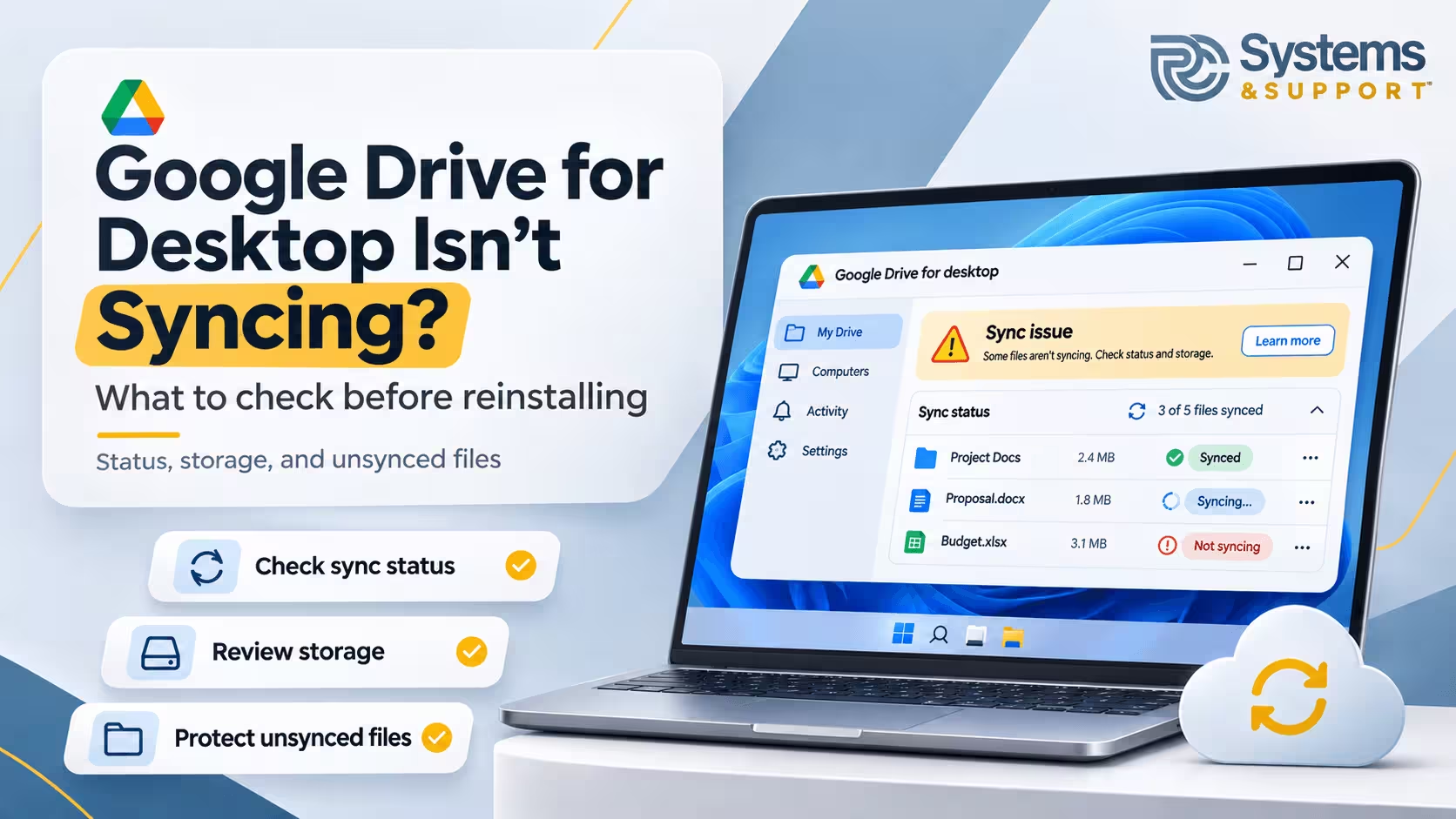
Google Drive for desktop is designed to keep files synchronized across devices, but interruptions can leave documents outdated, missing, or stuck uploading.
On November 10, 2026, Google released version 134.0 of Drive for desktop for Windows and macOS, introducing bug fixes and performance improvements. While Google did not confirm a widespread synchronization issue, the update highlights the importance of keeping cloud storage applications up to date.
If Google Drive for desktop is not syncing properly, understanding the cause before reinstalling the application can help protect your files and prevent unnecessary complications.
One of the most common misunderstandings about cloud storage is that saving a document automatically makes it available across all devices.
When you save a file on your computer, Google Drive needs to transfer those changes to its online servers. This normally happens in the background, but an interrupted internet connection, paused synchronization, or application error can prevent the process from completing.
Your updated document may still exist on your computer even though the online version has not changed. This becomes particularly problematic when working across multiple devices or collaborating with others who depend on the latest version of a shared document.
Before changing any settings, visit drive.google.com and sign in using the same Google account connected to your desktop application.
Compare the online version of an affected file with the version saved on your computer. If the latest changes appear online but not on your desktop, the application may be having difficulty retrieving them. If the updated file exists only on your computer, the upload may have failed or may still be pending.
Occasionally, synchronization problems can originate from Google's services rather than your device. The Google Workspace Status Dashboard provides information about reported service disruptions.
Checking these locations first can help you avoid unnecessary changes to your computer.
Several everyday issues can interrupt Google Drive synchronization, even when the rest of your computer appears to be working normally.
Browsing websites successfully does not necessarily mean your internet connection is reliable enough for continuous file transfers. Large documents, photographs, and videos may take longer to upload, particularly when your connection has limited upload speeds or experiences frequent interruptions.
If synchronization works on one network but repeatedly fails on another, your connection or network configuration may be contributing to the problem.
Google Drive operates quietly in the background, making it easy to overlook when synchronization has stopped.
On Windows, locate the Google Drive icon near the clock in the taskbar. On macOS, look for it in the menu bar. Opening the application allows you to review synchronization activity, pending transfers, and reported errors.
Resuming synchronization or restarting the application may resolve temporary problems. However, recurring errors may indicate an underlying issue that requires further troubleshooting.
Google Drive depends on both available cloud storage and local computer storage. A standard personal Google account includes 15 GB of storage shared across Google Drive, Gmail, and Google Photos.
If your Google account reaches its storage limit, new files may stop uploading. Similarly, insufficient space on your computer can interfere with downloading, caching, and processing files.
You can review your account's available capacity through Google's storage management tools. Before deleting files to free up space, remember that deleting documents from a synchronized folder may also remove them from the cloud.
Older versions of Google Drive for desktop may experience compatibility or reliability problems. Keeping the application updated helps address known software issues and maintain normal operation.
Shared file permissions can also affect synchronization. If a document owner changes your access or moves a shared file, Google Drive may no longer be able to process your changes. Checking whether you can access and edit the file through your browser can help identify permission-related problems.
Google Drive for desktop offers two methods of accessing files: streaming and mirroring.
Streaming keeps most files online and downloads their contents when needed. This saves space on your computer, but files that have not been made available offline may be inaccessible without an internet connection.
Mirroring stores copies of My Drive files on both your computer and in the cloud. It requires more local storage but allows you to access those files without an internet connection.
Understanding which mode your computer uses can help explain why certain files appear unavailable. Before switching between modes, confirm that your important files have successfully uploaded.
Google explains both options in its streaming and mirroring guide.
Reinstalling Google Drive may seem like a straightforward solution, but it should not be your first response when important documents have stopped syncing.
Google Drive may place files that could not be synchronized into a local recovery folder called Lost & Found. Google warns that disconnecting your account can remove the contents of this folder.
If your latest documents are not available online, save separate copies outside your Google Drive folder before disconnecting your account, resetting the application, or reinstalling it. Confirm that these copies can be opened successfully.
Cloud synchronization is also not a complete backup strategy. Accidental deletions and unwanted changes can synchronize across devices, which makes maintaining a separate backup of important files worthwhile.
Google Drive synchronization problems are not always caused by a single issue. Storage limitations, network interruptions, application settings, and account configurations can overlap, making it difficult to identify the source of the problem.
RC Systems & Support provides remote technical assistance to help users investigate everyday computer and software issues, including cloud storage and file synchronization problems.
Identifying the underlying cause before making significant changes can help restore normal operation while protecting important documents.
Google Drive makes accessing files across devices convenient, but synchronization problems can interrupt everyday work. Checking your connection, storage, account settings, and application status can often help identify the issue.
The most important consideration is protecting your files before attempting major changes.
If Google Drive continues to experience synchronization problems, visit RC Systems & Support to explore remote tech support and get practical assistance with your computer and software issues.